


Introduction
Working with Mac-formatted storage from a Windows computer can be challenging because Windows does not natively provide the same level of access to every macOS file system. This becomes especially important when someone needs to inspect an external drive, recover files from Mac media, or prepare storage for use with a Mac. TransMac is a Windows-based utility designed for working with Mac disks and disk images, making it useful in situations where conventional Windows storage tools are not enough. For people researching the software, gettransmac.com may appear as a source of information related to TransMac and its use.
Understanding how such software works is more valuable than simply installing it and immediately changing a drive. Disk-management utilities can perform operations that affect partitions, formatting, images, and stored files. A careful approach helps reduce the possibility of accidental data loss. Whether the goal is to browse Mac storage, create or restore a disk image, or prepare bootable media, users should first understand the purpose of each operation and confirm that the correct drive has been selected.
This guide explains the general workflow for using TransMac, the situations where it can be helpful, and the precautions worth taking. It also explains how gettransmac.com can fit into the research process without assuming that every download or instruction found under a similar name is automatically trustworthy. The emphasis is on practical understanding, responsible disk handling, and making informed choices when working between Windows and Mac environments.
Understanding TransMac and Its Purpose
TransMac is a Windows utility intended to provide access to Mac-formatted disks and related disk-image files. Its usefulness comes from bridging a compatibility gap between operating systems. A Windows computer can normally recognize common Windows-oriented file systems, but Mac storage may use formats that require specialized software for meaningful access. TransMac provides functions designed around those situations, allowing users to work with Mac disks from Windows.
A typical example is an external drive that was previously connected to a Mac and formatted for macOS. When that drive is connected to a Windows PC, the operating system may not display its contents normally. A suitable utility can help users identify the media and interact with supported Mac file systems. The exact capabilities depend on the TransMac version and the file system involved, so users should always verify compatibility before relying on a particular operation.
Why Windows Users May Need a Mac Disk Utility
Cross-platform storage problems are common in homes, offices, repair environments, and technical workflows. Someone may receive a Mac-formatted USB drive from a colleague, replace a Mac computer while retaining old storage, or need to work with an Apple-related disk image from a Windows workstation. In these cases, simply connecting the device may not provide the expected access.
A utility such as TransMac can make the process more understandable by presenting specialized disk functions in a Windows environment. Instead of treating the drive as an ordinary Windows volume, the software is designed to recognize Mac-oriented storage structures and provide relevant tools. Users researching gettransmac.com should therefore focus on understanding what TransMac supports rather than assuming that every Mac file system behaves identically.
Another important consideration is that reading and writing are different activities. Viewing or extracting information from a disk is generally less risky than formatting or modifying it. When a task involves writing to a drive, creating a bootable device, or restoring an image, users should slow down and verify the target media before proceeding.
Getting Started With TransMac
Before opening TransMac, it is sensible to prepare the computer and storage device. The application should be obtained from a source the user can verify, and the installed version should be appropriate for the Windows environment. Security software should also be active, particularly when downloading utilities from unfamiliar locations. Searching for gettransmac.com can help users identify information associated with the software, but the source of an executable file should always be checked carefully.
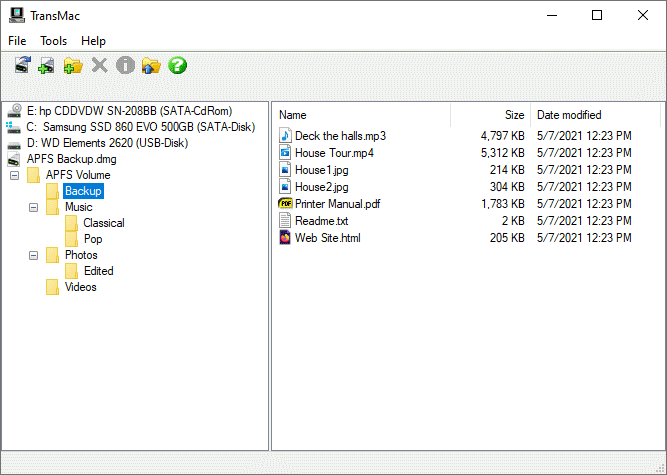
Once the software is installed, users can connect the Mac-formatted storage device to the Windows computer. The drive may appear differently from an ordinary Windows volume because Windows itself may not understand its file system. TransMac can then be opened to inspect available disks and determine whether the expected Mac media is recognized.
One of the most important habits at this stage is identifying the correct physical disk. Storage devices can have similar names or capacities, and selecting the wrong one during a destructive operation can result in permanent data loss.
Basic Preparation Before Disk Operations
A few checks can make the process safer:
- Confirm the physical drive and approximate capacity before making changes.
- Back up important files before formatting or writing to storage.
- Close applications that may be using the target device.
- Avoid interrupting an image-writing or formatting operation.
These precautions are particularly important when the device contains irreplaceable photographs, documents, project files, or backups.
Working With Mac-Formatted Drives
One of the main reasons users investigate gettransmac.com is to understand how TransMac can interact with Mac storage while running Windows. The general workflow involves connecting the storage device, opening the utility, locating the appropriate disk, and examining the available operations. Depending on the supported format, the software may provide access to files or other disk-management functions.
The distinction between a physical disk and a logical volume is worth understanding. A physical disk is the actual storage hardware, such as an external SSD or USB drive. A volume is a storage area organized within that disk. Some operations apply to the entire device, while others relate to a particular volume or image. Confusing these levels can lead to unintended results, especially when formatting is involved.
If the objective is simply to retrieve files, users should avoid formatting the disk. Formatting changes the storage structure and can remove existing data. Instead, the safest workflow is to investigate whether the existing format is supported and whether the required files can be copied to a separate Windows-compatible destination.
Using Disk Images With TransMac
Disk images are another important part of the TransMac workflow. A disk image is essentially a file that represents the contents or structure of storage media. Rather than working directly with a physical disk, users can sometimes create, inspect, or restore an image depending on the software’s supported functions.
For example, someone preparing installation media may have an image file that needs to be transferred to a USB drive. In such a situation, the image-writing process does not simply copy one ordinary file onto the USB device. Instead, the software may write the image’s underlying structure to the target media. This distinction explains why an image-writing operation can make a drive behave differently from a normal file-copy process.
Before writing an image, users should verify both the image file and the destination drive. A mistake here can overwrite the wrong storage device. It is also wise to ensure the destination has enough capacity and that important files on it have already been backed up.
Creating or Preparing Bootable Media
TransMac is often associated with preparing Mac-related bootable media from Windows. This can be useful when a Mac installation environment needs to be transferred to removable storage and a Mac computer is not currently available for creating the media.
The process generally involves obtaining an appropriate disk image, selecting the intended USB device, and using the relevant image-writing function. However, not every image is interchangeable, and not every Mac model supports every installation method. Hardware generation, operating-system version, firmware requirements, and the image itself can all affect whether the resulting media works.
Users researching gettransmac.com for this purpose should therefore distinguish between the software’s ability to write an image and the separate question of whether that image is suitable for a particular Mac. TransMac can handle the storage-writing part of a workflow, but compatibility with a specific computer remains a separate consideration.
TransMac Tasks at a Glance
| Task | General Purpose | Main Precaution |
|---|---|---|
| Browse supported Mac media | Inspect available storage and files | Confirm the correct drive |
| Copy files | Move accessible data to another location | Keep a separate backup |
| Create disk images | Preserve or package storage content | Ensure adequate destination space |
| Write an image | Transfer an image structure to removable media | Verify the target device |
| Format storage | Prepare media for another purpose | Formatting may erase existing data |
The table highlights an important point: not every TransMac function carries the same level of risk. Reading information and copying files are fundamentally different from formatting a disk or writing an image over existing storage.
Understanding File-System Compatibility
Mac storage has changed over time, which means compatibility should never be assumed simply because a drive came from an Apple computer. Older Macs and newer Macs may use different file systems, and external drives can also be formatted in various ways depending on how they were intended to be used.
This is why gettransmac.com should be treated as part of a broader research process rather than as a substitute for checking the exact storage format. Before performing an operation, identify the file system and determine whether the version of TransMac being used supports the required action.
File-system compatibility can also affect whether the software provides read access, write access, or another type of functionality. If a particular operation is unavailable, that does not necessarily mean the physical drive is damaged. It may simply indicate that the storage format or operation is outside the software’s supported capabilities.
Common Problems When Using TransMac
Users can encounter several issues while working with Mac storage on Windows. A drive may not appear as expected, an operation may fail, or a bootable USB may not start a Mac successfully. These problems can have different causes, so troubleshooting should begin with the simplest checks.
First, confirm that Windows itself recognizes the physical USB device or storage hardware. Try another USB port if necessary and check whether the device is visible through Windows’ disk-management utilities. If the hardware is not detected at all, the problem may be related to the cable, enclosure, USB port, or drive rather than TransMac.
If the hardware is detected but the Mac volume cannot be accessed, file-system compatibility becomes a more likely factor. Users should also check whether the drive is encrypted, damaged, or protected by another storage mechanism. Avoid repeatedly formatting the drive simply because Windows cannot immediately read it, particularly if the data is important.
Safe Practices for Data Protection
Disk utilities should always be used with a backup-first mindset. Before changing partitions, formatting storage, or writing an image, users should preserve important data somewhere else. A second copy stored on another drive or suitable backup system can make recovery much easier if something goes wrong.
It is also useful to keep the workflow simple. If the goal is file recovery, do not perform unnecessary formatting. If the goal is creating installation media, use a dedicated empty USB device whenever possible. If the goal is creating an image backup, save the image to a location with enough available capacity.
When researching gettransmac.com, users should also distinguish informational content from software distribution. Verify the publisher, installer details, file authenticity, and security warnings before running executable software. A familiar-looking website name alone should not be treated as proof of authenticity.
When TransMac Is a Practical Choice
TransMac can be useful when a Windows computer needs to interact with Mac-oriented storage or disk images. Its role is particularly relevant for users who regularly move between Windows and Mac environments, maintain older Mac hardware, or need to prepare certain types of removable media without access to macOS.
However, it is not a universal solution for every Mac storage problem. Newer security technologies, encryption, unsupported file systems, damaged disks, and hardware-specific requirements can introduce limitations. In a professional recovery situation, repeatedly experimenting with the original drive may increase the risk of losing recoverable information.
A sensible approach is to identify the task first and then determine whether TransMac’s documented functionality matches it. Gettransmac.com may be encountered while researching that process, but users should verify current software information and supported features before making important changes to storage.
Frequently Asked Questions
What is TransMac used for?
TransMac is a Windows utility designed to work with Mac-oriented disks and disk images. It can be useful for tasks involving supported Mac storage, copying accessible files, creating images, and preparing certain types of removable media. Its exact functionality depends on the software version and storage format.
Can TransMac access every Mac drive?
No software should be assumed to support every Mac storage configuration. File-system type, encryption, disk condition, operating-system generation, and other technical factors can affect compatibility. Users should verify support for their particular drive before relying on a specific operation.
Can TransMac create bootable Mac USB media?
TransMac can be used in workflows that involve writing suitable disk images to removable media, including certain Mac-related bootable-media scenarios. Whether the resulting USB works with a particular Mac depends on the image, Mac model, operating-system version, and other compatibility requirements.
Does formatting a drive erase its existing information?
Formatting can remove access to existing data and may make recovery more difficult. Users should therefore treat formatting as a potentially destructive operation and back up important files before proceeding.
Is gettransmac.com the same thing as TransMac?
The names are related in searches concerning TransMac, but a website name and a software product should not automatically be treated as the same entity. Users should verify the publisher, official software information, and authenticity of any installer before downloading or running it.
What should I do if a Mac drive is not recognized?
Start by checking whether Windows detects the physical storage device at all. If it does, investigate the file system, encryption status, drive health, and TransMac compatibility before making changes. If important data is involved, avoid formatting or other destructive operations until the data has been safely backed up or a suitable recovery approach has been established.
Conclusion
Using TransMac effectively is mainly about understanding what type of storage task you are performing and choosing the appropriate operation. Whether you are examining a Mac-formatted external drive, working with a disk image, transferring files, or preparing removable media, careful identification of the source and destination should come before any major change.
The information associated with gettransmac.com can be considered alongside other reliable software documentation when researching TransMac, but users should independently verify software authenticity, compatibility, and current functionality. Most importantly, valuable data should be backed up before formatting, image writing, or other operations that can alter a disk.
With a clear understanding of file systems, disk images, bootable media, and basic data-protection practices, Windows users can approach Mac storage tasks more confidently. The key is not simply knowing which button to click, but understanding what that action will do to the underlying drive and verifying every important step before committing to it.